
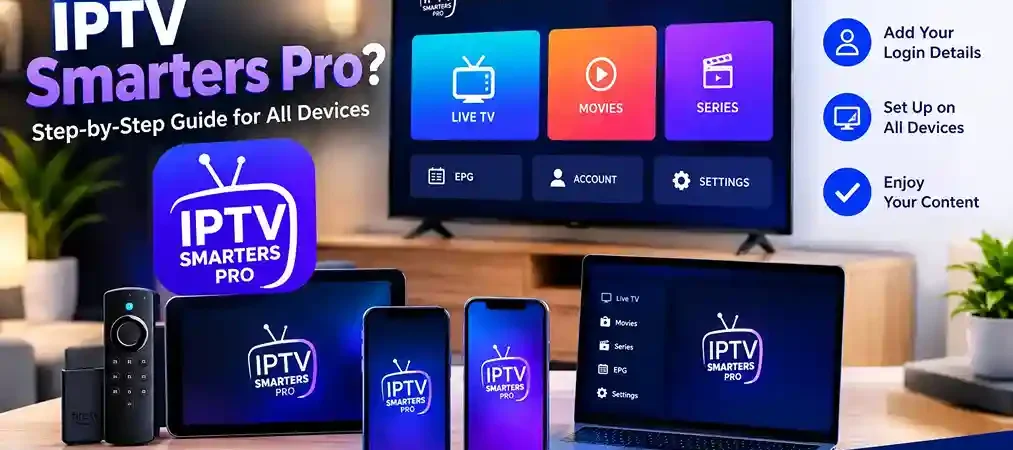
How to Install IPTV Smarters Pro on Firestick/Android TV (2026)
IPTV Smarters Pro remains one of the most widely used media player apps for streaming IPTV content, thanks to its clean interface and broad device support. This guide walks you through installing it on Firestick and Android TV, plus quick instructions for other major platforms, so you can get set up without wading through a dozen separate articles.
What Is IPTV Smarters Pro?
IPTV Smarters Pro is a media player app — it does not provide any TV channels, movies, or content on its own. Instead, it connects to an IPTV subscription using your provider’s login credentials (Xtream Codes or an M3U playlist URL) and organizes everything into a clean, TV-guide-style interface. Think of it as the “player,” not the “content” — you’ll still need an active, properly licensed IPTV subscription to use it.
What You Need Before Installing
- A Firestick, Android TV device, phone, tablet, or PC
- A stable internet connection (10 Mbps minimum for HD; 25 Mbps+ recommended for 4K)
- Your IPTV subscription credentials (Xtream Codes login or M3U URL), provided by your provider after signup
How to Install IPTV Smarters Pro on Firestick & Android TV
Firestick and most Android TV devices don’t ship with IPTV Smarters Pro pre-installed, since it isn’t distributed through the Amazon App Store. You’ll need to enable sideloading, a standard and legitimate process used for many apps not listed in the default store.
Step 1: Enable apps from unknown sources
Go to Settings → My Fire TV (or Device) → Developer Options, then turn on Apps from Unknown Sources. If you don’t see Developer Options, go to About and click the device name seven times to unlock it.
Step 2: Install the Downloader app
From the home screen, search for and install Downloader — a free, official Amazon app used to install apps from a direct URL.
Step 3: Download and install IPTV Smarters Pro
Open Downloader, enter the official IPTV Smarters Pro download URL (available on the developer’s website — search “IPTV Smarters Pro official download” to confirm the current link, since URLs occasionally change), and select Go. Once the file downloads, select Install, then Done.
Step 4: Launch the app
Find IPTV Smarters Pro under your apps list and open it to begin setup.
How to Install IPTV Smarters Pro on Android Phones & Tablets
On Android mobile devices, availability can vary by region. Check the Google Play Store first by searching “IPTV Smarters Pro” or “Smarters Player.” If it isn’t listed for your region, you can sideload the APK from the developer’s official site using a similar process to the Firestick method above (enabling installation from unknown sources in your device settings first).
How to Install IPTV Smarters Pro on iPhone/iPad
iOS availability has shifted over the years due to App Store content policies, so it’s worth checking the App Store directly before assuming a method. Search for “IPTV Smarters Pro” or its companion apps (sometimes listed under names like “Smarters Player Lite”). If it’s unavailable in your region, look for another reputable Xtream Codes/M3U-compatible player in the App Store as an alternative.
How to Install IPTV Smarters Pro on PC
- Visit the official IPTV Smarters Pro website.
- Download the Windows or Mac version.
- Run the installer and follow the on-screen prompts.
- Launch the app once installation completes.
Setting Up IPTV Smarters Pro After Installation
- Open the app and select Login with Xtream Codes API or Load your M3U URL, depending on what your provider gave you.
- Enter your credentials or playlist URL exactly as provided.
- Give the app a moment to load your channel and content list.
- Browse Live TV, Movies, or Series from the main menu.
Key Features of IPTV Smarters Pro
- Multiple Playlists – manage more than one IPTV subscription from a single app
- Electronic Program Guide (EPG) – see what’s airing now and later, channel by channel
- Recording – save live broadcasts to watch later (where supported by your device)
- Multi-Screen – view several channels at once
- Parental Control – restrict access to specific channels or categories
- External Video Players – route playback through a third-party player for better format support
- Web Player – access your IPTV content from a browser without installing the app
Common Problems and Fixes
- “Failed to authorize” errors: Usually related to your subscription/provider, not the app itself. Confirm your credentials are correct and your subscription is active.
- Buffering or freezing: Check your internet speed and consider switching from Wi-Fi to a wired connection.
- App not found in your region’s store: Use the sideloading method described above, downloading only from the official developer source.
FAQs
Is IPTV Smarters Pro free?
Yes, the app itself is free. You pay separately for an IPTV subscription, which supplies the actual content.
Do I need an IPTV subscription to use IPTV Smarters Pro?
Yes. The app is a player only — it has no channels or content without a subscription connected to it.
Can I use IPTV Smarters Pro on multiple devices?
Yes, it’s compatible with Firestick, Android TV, Android phones/tablets, iOS, Windows, and Mac, and supports managing multiple playlists.
Why does the app say “failed to authorize”?
This almost always points to an issue with your subscription or provider rather than the app itself.