
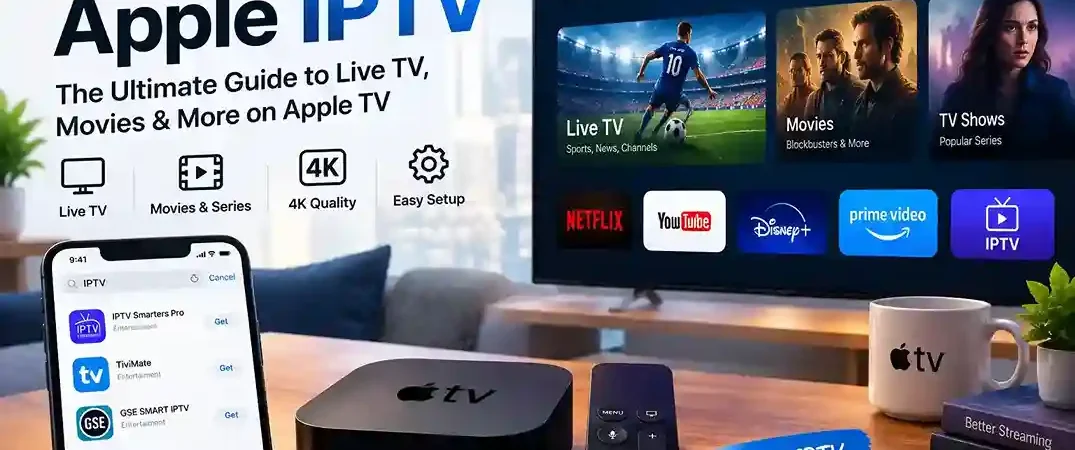
Apple IPTV: How to Watch IPTV on Apple TV
Apple IPTV is quickly becoming the go-to way for Apple TV owners to access live channels, video-on-demand, and program guides without extra hardware. If you’re wondering whether you can bring your IPTV subscription to Apple TV, the answer is yes — you just need the right app and a few minutes of setup. Here’s everything you need to know about getting Apple IPTV running smoothly.
Can You Use IPTV on Apple TV?
Apple TV doesn’t include native IPTV support, but the App Store has several third-party apps built specifically to bring Apple IPTV to your screen. These apps act as a player: you load your subscription’s channel list into the app, and it handles playback, guide data, and organization.
How IPTV Works on Apple TV
IPTV (Internet Protocol Television) delivers channels and video content over the internet rather than through cable or satellite lines. With Apple IPTV, a player app connects to your provider’s server, pulls in the channel list, and streams it just like any other app — no extra hardware required.
What You Need Before Getting Started With IPTV in Apple tv
- An Apple TV (HD or 4K)
- An active internet connection (wired is best for stability)
- A legitimate, licensed IPTV subscription, with either an M3U playlist URL or Xtream Codes login details
- An Apple ID to download apps from the App Store
Best IPTV Apps for Apple TV
Not all Apple IPTV players are created equal — some offer more flexible EPG (electronic program guide) support, others prioritize a cleaner interface. Here are a few worth considering:
- IPTV Smarters — One of the most widely used Apple IPTV players, known for Xtream Codes support and a straightforward setup process.
- iPlayTV — A clean, Apple-native interface with solid EPG and VOD organization.
- IPTVX — Lightweight and fast, with support for both M3U and Xtream Codes formats.
- GSE Smart IPTV — Highly customizable, with support for multiple playlist formats and parental controls.
Each has a slightly different interface, so it’s worth trying a couple to see which Apple IPTV player fits how you like to browse channels.
How to Install IPTV on Apple TV
How to Set Up IPTV Step by Step in Apple tv
- Open the App Store on your Apple TV home screen.
- Install an IPTV player — search for one of the Apple IPTV apps above and download it.
- Add your IPTV playlist or login details — enter your M3U URL or Xtream Codes credentials, provided by your IPTV service.
- Start watching — once the playlist loads, your channels, guide, and VOD library should appear in the app.
Setup usually takes less than five minutes once you have your Apple IPTV credentials on hand.
iptv in Apple TV Compatibility and Features
- Apple TV HD and Apple TV 4K: Most major Apple IPTV apps work on both models.
- M3U and Xtream Codes support: These are the two playlist standards you’ll encounter — nearly all providers use one or the other.
- EPG, VOD, and live TV: A good Apple IPTV app will show a program guide, on-demand content, and live channels in one place.
- 4K streaming and device compatibility: If your subscription and internet connection support it, Apple TV 4K can play high-resolution Apple IPTV streams smoothly.
Tips for a Better IPTV Experience in apple tv
- Check your internet connection — Apple IPTV is bandwidth-hungry, especially in HD or 4K. A stable, fast connection (wired if possible) prevents buffering.
- Choose a compatible IPTV player — match the app to your provider’s format (M3U vs. Xtream Codes) for the smoothest setup.
- Keep tvOS and the app updated — updates often fix playback bugs and add compatibility improvements.
- Use a licensed provider — for both reliability and to stay on the right side of copyright law, choose an Apple IPTV subscription from a legitimate, authorized service.
Conclusion: Getting Started With Apple IPTV
Getting Apple TV up and running comes down to two things: picking a reliable player app and having your playlist credentials ready. Once you’ve installed an app like IPTV Smarters, iPlayTV, IPTVX, or GSE Smart IPTV and entered your details, you’ll have live TV, VOD, and a program guide all in one place — no extra hardware needed. From there, it’s just a matter of keeping your connection strong and your apps updated for the best Apple IPTV experience.